
How to Recover Data from a Corrupted or Failed Hard Drive: A Complete Step-by-Step Guide
How to Recover Data from a Corrupted or Failed Hard Drive: A Complete Step-by-Step Guide
adminos
November 1, 2025
Uncategorized
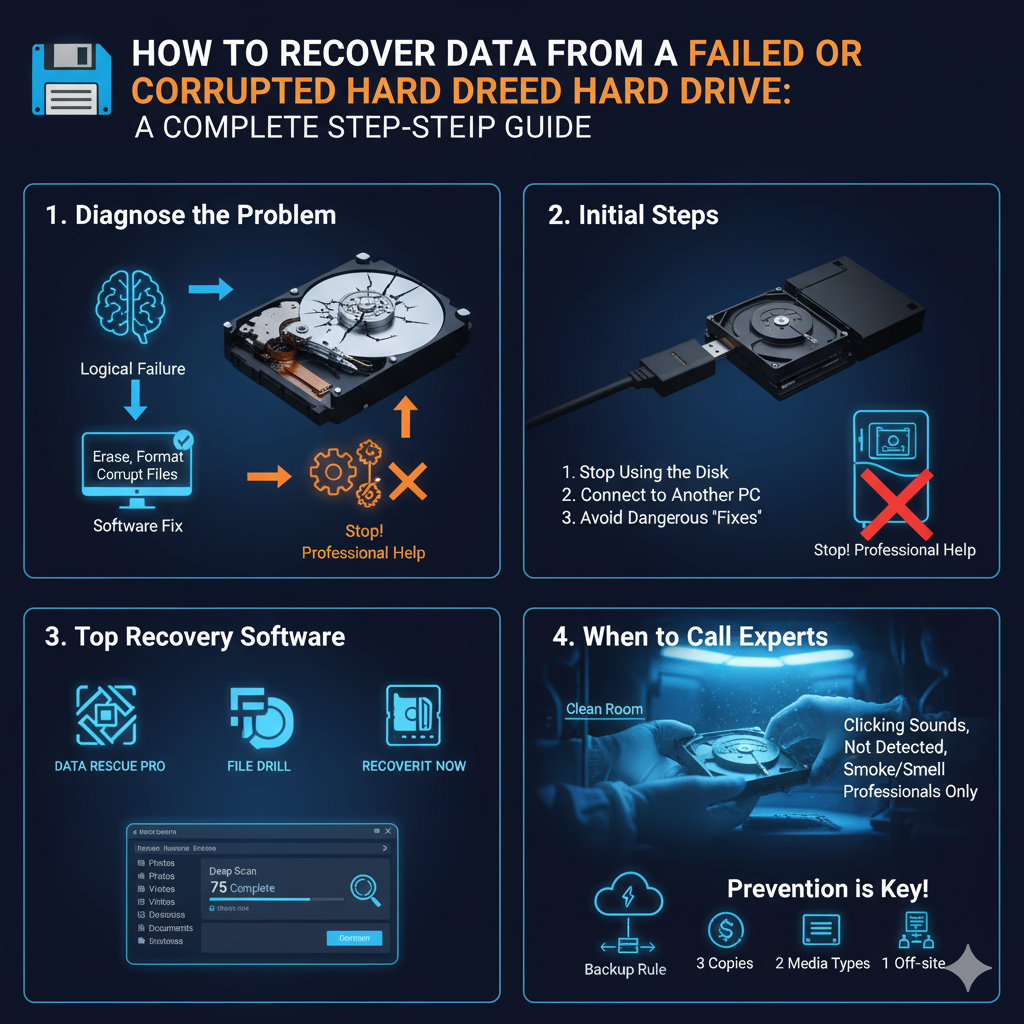
A Moment of Panic That Can Be Overcome
Have you ever experienced the sheer terror of losing your valuable files? Whether it’s cherished family photos or critical business data, hearing a strange clicking sound from your hard drive or seeing a “Drive Not Available” message is a true nightmare. Many believe that data loss from a failed hard drive means the end, but the truth is, the chances for Data Recovery are still high and very much alive.
In this complete guide, we will provide you with the exact steps you need to take to maximize your chances of recovery after format or from a corrupted disk, starting from diagnosis all the way to final recovery.
1. The Crucial Diagnosis: Logical or Physical Failure?
Before attempting anything, you must determine the type of damage that has affected the hard drive. This determines whether you can use deleted file recovery software yourself, or if you need to seek a professional.
| Type of Failure | Symptoms | Required Action |
| Logical Failure | Error messages like “Format Disk,” disappearance of some files, recovery after format scenario, file system corruption. | You can try yourself. Use specialized recovery software. |
| Physical/Mechanical Failure | Repeated clicking or grinding sounds, the disk not spinning, strange smell, high heat, computer not recognizing the drive at all. | You must stop immediately and seek a specialist. Attempting recovery yourself may destroy data permanently. |
2. Quick Recovery Guide: Critical Initial Steps
If the damage is logical, follow these procedures to prepare the drive for recovery:
🛑 Immediately Stop Using the Drive
When you lose a file, it remains on the drive until new data overwrites it. Therefore:
Do not save any new files to the corrupted drive.
Do not install the recovery software on the same drive from which you lost the data.
🔌 Connect the Drive to Another Computer
To ensure no data is written to the corrupted drive, connect it to another functional computer using an External Hard Drive Enclosure. This allows the second computer to treat it as a secondary storage disk.
⚡ Avoid Dangerous and Wrong Methods
Completely avoid trying internet “hacks” such as putting the hard drive in the freezer (which can increase humidity and cause greater damage).
3. Best Data Recovery Software (for Logical Failure)
In the case of logical damage or accidentally deleted files, you will need powerful software to perform a Deep Scan. These programs are the best for free file recovery (up to a certain limit) or paid options:
EaseUS Data Recovery Wizard:
Known for its user-friendly interface and ability to restore a wide range of deleted file types. Effective in deletion and format scenarios.
Disk Drill:
Famous for its excellent performance in recovering lost partitions and large video files. It offers a useful free edition.
Wondershare Recoverit:
A good choice for recovering data from a corrupted hard drive (logically) and includes an option to create a bootable disk for recovering crashed systems.
How to Perform a Deep Scan:
To increase your chances of recovery after format, use the “Deep Scan” option in your chosen software. This option examines the disk sector by sector, searching for the remnants of lost files, rather than just relying on the file system.
4. The Last Line of Defense: When to Call the Experts?
If the hard drive never shows up, or you hear clicking or grinding sounds, this means there is physical damage to the read heads or the motor.
In this case, do not attempt to power it up again, and do the following:
Isolate the Drive: Disconnect the hard drive from the computer and place it in an anti-static bag.
Contact a Professional Data Recovery Lab: Experts will open the drive in a Clean Room, a sterile environment to prevent dust particles from permanently damaging the internal platters.
5. Conclusion and Prevention: Avoiding the Need for Data Recovery
The best way to deal with data loss is to prevent it from happening. Based on the experience of a company’s ransomware attack, we highly recommend the following:
Isolated Backup: Follow the 3-2-1 backup rule (three copies, on two different media, and one copy isolated off-site).
Monitoring: Monitor the health of your hard drive using programs like CrystalDiskInfo to identify early signs of types of HDD failure.
Regular Updates: Keep your operating system and anti-virus programs updated.
Investing in a preventative plan is much cheaper and safer than paying the high costs of specialized data recovery.
Have Any Question?
Lorem ipsum dolor sit amet, consectetur adipiscing elit, sed do eiusmod
- (+62) 81 322 1467
- support@domain.com